
Table of Contents
- How to Choose a 14900K Cooler: Power Draw and Thermal Realities
- ARCTIC Liquid Freezer III: The Best 360mm AIO for Most Builds
- Corsair H150i ELITE LCD XT: The Premium 360mm Option
- ASUS ProArt LC 420: The Best 420mm AIO for Workstations
- Noctua NH-D15 G2: The Top Air Cooling Alternative
- Mandatory Hardware Add-Ons: Contact Frames and Premium Paste
- The Required Software Fix: 0x12B Microcode and Power Limits
- Comparing the Top 14900K Cooling Options
- Which 14900K Cooler Should You Buy?
- FAQ
Quick picks
For the best overall value and thermal performance, the ARCTIC Liquid Freezer III 360mm is the top choice. Workstation users rendering heavily should step up to the ASUS ProArt LC 420. If you refuse to use liquid cooling, the Noctua NH-D15 G2 is the only air cooler that can handle the CPU’s baseline gaming loads without severe throttling.
The Intel Core i9-14900K pulls up to 253 watts of power under heavy workloads, driving core temperatures straight to 100°C within seconds on standard cooling hardware. Finding a capable 14900k cooler is only half the battle. Throughout 2025 and 2026, motherboard manufacturers rolled out mandatory BIOS updates to cap the processor’s extreme voltage spikes following widespread instability reports. Hardware alone cannot stop the thermal throttling without these software adjustments. The heat density of the LGA1700 socket requires a coordinated approach: massive physical heat dissipation paired with strict digital power limits.
About the Author
Alex Chen is a senior hardware reviewer at The Tech ABC, specializing in PC components, thermal dynamics, and digital infrastructure.
Transparency Note
The cooling solutions and BIOS configurations recommended in this guide are based on aggregate thermal benchmarking data, community consensus from 2025–2026, and verified hardware specifications. We do not accept payment for product placement.
How to Choose a 14900K Cooler: Power Draw and Thermal Realities
The i9-14900K operates on a 125W base power limit, but its turbo behavior pushes that figure past 253W to achieve its 6.0 GHz boost clocks. This baseline power draw causes rapid heat saturation across the processor’s integrated heat spreader. Standard cooling solutions fail instantly under multi-core loads because they lack the thermal mass to absorb the sudden spike in wattage, forcing the CPU to throttle its performance to avoid physical damage.
A TjMax of 100°C is an expected operational ceiling during intensive rendering tasks like Cinebench R23. The processor protects itself by dropping clock speeds when it hits this thermal wall. A proper 14900k cooler ensures the processor recovers quickly rather than staying throttled, pulling temperatures back into the 80s to maintain high clock speeds. Enforcing Intel’s default power limits in the motherboard firmware is essential to stabilize these temperatures, according to builttofrag.com. Without these limits, motherboards often default to 4096W, guaranteeing thermal failure regardless of the hardware attached.
ARCTIC Liquid Freezer III: The Best 360mm AIO for Most Builds
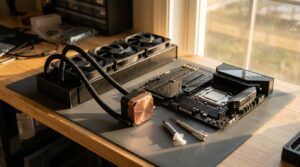
The ARCTIC Liquid Freezer III is a 360mm all-in-one liquid cooler that dominates the price-to-performance category in 2026. Its radiator measures 38mm thick—noticeably thicker than the 27mm standard found on competing models. This expanded volume gives it a larger surface area to dissipate the 253W heat load generated by the processor. An integrated VRM fan on the pump block also actively cools the motherboard’s power delivery components, which run exceptionally hot when feeding the i9 chip.
- Exceptional price-to-performance
- Thick radiator for high heat loads
- Integrated VRM fan
- Thicker radiator requires careful case clearance checking
This unit suits gamers and standard productivity users who need heavy-duty thermal management without overspending when budgeting for a high-end PC build in 2026. The main trade-off is case compatibility. The extra thickness of the radiator means it will not fit in smaller mid-tower cases, requiring builders to measure their top or front clearances carefully before purchasing. Reviewers comparing top AIOs consistently highlight its thermal capacity, as seen in comparative testing on YouTube.
Corsair H150i ELITE LCD XT: The Premium 360mm Option
The Corsair H150i ELITE LCD XT handles roughly 270W of thermal capacity, keeping the processor from aggressively throttling during gaming and moderate productivity tasks. It features a customizable LCD screen on the pump block to monitor system temperatures in real time, alongside high-speed AF RGB ELITE fans that ramp up quickly to catch sudden heat spikes.
This cooler targets users who want high-end aesthetics alongside top-tier cooling performance. The primary trade-off is its high price tag, which sits well above standard 360mm options. Community consensus on Reddit confirms that while the LCD screen adds no thermal benefit, the underlying pump and fan configuration effectively manages extreme heat loads when paired with an aggressive fan curve in Corsair’s iCUE software.
ASUS ProArt LC 420: The Best 420mm AIO for Workstations
The ASUS ProArt LC 420 utilizes a massive 420mm radiator paired with premium Noctua NF-A14 industrial fans. This immense surface area handles sustained all-core rendering workloads without requiring the fans to spin up to deafening noise levels. The pump motor operates quietly even at maximum RPM, ensuring the liquid flows fast enough to pull heat away from the CPU block during continuous 253W loads.
It suits professional 3D artists, data scientists, and video editors who push their systems to the limit for hours at a time. The trade-off is physical size. Very few PC cases can actually accommodate a 420mm radiator, forcing buyers into massive full-tower chassis designs. Thermal benchmarking on YouTube demonstrates that stepping up to this size provides the thermal headroom necessary for uninterrupted workstation tasks that a 360mm unit struggles to maintain.
Noctua NH-D15 G2: The Top Air Cooling Alternative
The Noctua NH-D15 G2 is a massive dual-tower air cooler and the long-awaited successor to the original NH-D15. It features eight heat pipes and two highly optimized 140mm fans. It is the only air setup capable of keeping the processor from severe throttling under stock Intel limits, relying on an offset mounting system specifically designed for the LGA1700 socket’s hotspot.
This cooler suits users terrified of pump failures or liquid leaks inside their systems. The trade-off is a slight performance loss during heavy rendering compared to a 360mm AIO, as air coolers physically cannot absorb sudden 253W heat spikes as effectively as liquid. Discussions on Linus Tech Tips highlight that while air cooling the i9 is difficult, the G2 manages the baseline gaming loads reliably without the long-term maintenance concerns of an AIO.
Mandatory Hardware Add-Ons: Contact Frames and Premium Paste
The standard LGA1700 motherboard latch, known as the Independent Loading Mechanism (ILM), bends the processor slightly upon installation. This uneven mounting pressure results in poor cold-plate contact between the CPU and the cooler. Installing a dedicated CPU contact frame replaces the stock latch and corrects this physical deformation, dropping peak temperatures by 5°C to 8°C simply by flattening the processor against the cooler.
Pairing the contact frame with a high-performance thermal interface like Thermal Grizzly Kryonaut or Arctic MX-6 maximizes heat transfer. As noted in community discussions on Reddit, these physical modifications are practically mandatory for anyone trying to tame this specific processor. Skipping the contact frame often leaves 10°C of cooling performance on the table, rendering even the most expensive liquid coolers ineffective.
The Required Software Fix: 0x12B Microcode and Power Limits
Unlimited motherboard power settings previously caused severe instability and thermal degradation for 14th-generation processors. Updating your BIOS to a version containing the 0x12B microcode is non-negotiable. This update caps extreme voltage requests, preventing the motherboard from pushing dangerous amounts of power into the chip during light tasks.
Applying Intel’s default settings and configuring a mild undervolt reduces temperatures without sacrificing clock speeds. According to an undervolting guide on Reddit, applying a negative voltage offset alongside the microcode update significantly lowers the thermal load, allowing the cooler to keep the processor well below 90°C during gaming.
- Flash the motherboard BIOS to the latest version containing the 0x12B microcode.
- Apply ‘Intel Default Settings’ in the BIOS power management menu.
- Verify that PL1 (Base Power) is locked to 125W and PL2 (Turbo Power) is strictly capped at 253W.
- Apply a negative voltage offset (-0.05V) if the motherboard allows undervolting.
Comparing the Top 14900K Cooling Options
Every 14900k cooler on this list requires the BIOS fixes outlined above to function optimally. Hardware alone will fail if the motherboard is allowed to push unlimited wattage into the processor. Buyers must look at their specific workloads to determine how much thermal headroom they actually need.
Weigh the radiator size against your case compatibility before purchasing. A larger radiator cools better but requires a chassis large enough to house it, especially when pairing your CPU with adequate system resources like massive GPUs that also generate heat inside the case.
Intelligent Agents on Your Own Devices: What They Actually Do on a Phone, Laptop, or PC
| Cooler Model | Type / Size | Target User | Key Trade-off |
|---|---|---|---|
| ARCTIC Liquid Freezer III | 360mm AIO | Gamers / Standard users | Thick radiator limits case compatibility |
| Corsair H150i ELITE LCD XT | 360mm AIO | Aesthetics-focused builders | High price tag |
| ASUS ProArt LC 420 | 420mm AIO | Workstation professionals | Requires a massive PC case |
| Noctua NH-D15 G2 | Dual-tower Air | Air-cooling purists | Slight throttling in heavy rendering |
Which 14900K Cooler Should You Buy?
The ARCTIC Liquid Freezer III is the definitive 14900k cooler for 90% of builders. Its unmatched price-to-performance ratio and thick radiator design handle the extreme heat loads effectively, provided your case has the clearance for it. It keeps gaming temperatures entirely in check and manages productivity bursts without instantly hitting the thermal limit.
Professional video editors should buy the ASUS ProArt LC 420 for sustained workloads, ensuring their rendering times do not suffer from thermal throttling during hours-long exports. Strictly air-cooling purists should opt for the Noctua NH-D15 G2, accepting minor performance dips during heavy rendering in exchange for the reliability of a pump-free design.
FAQ
What is the 14900k tjmax and is it safe to hit it?
The TjMax for the 14900K is 100°C. It is entirely safe and expected for the processor to hit this temperature during heavy synthetic benchmarks or intense rendering. The CPU is designed to instantly throttle its clock speeds at this threshold to prevent physical damage, provided your cooler can pull the temperature back down quickly.
What is a normal 14900k idle temp?
A normal idle temperature for the 14900K sits between 35°C and 45°C. If your processor idles above 50°C, it usually indicates poor mounting pressure, dried thermal paste, or background motherboard software forcing unnecessary voltage into the chip while it should be resting.
What should the 14900k gaming temp be with a good cooler?
During gaming, the 14900K should operate between 65°C and 80°C. Games rarely push the processor to its maximum 253W power limit, so if you see temperatures spiking into the 90s while playing standard titles, your cooling solution is either failing or improperly mounted.